
Down · Quick Channel Zap
While watching Live TV, press Down to open the frosted Liquid Glass channel drawer and switch streams with OK.
Everything you need to connect your own legal playlists, master Roku remote shortcuts, tune Glass Clarity, and manage Neon+ through Roku Pay.
Neon is a strictly neutral media player with zero pre-loaded channels. Your sources stay privately on your Roku device.
Download Neon from the Roku Channel Store. Launch the app—no Genlock account or sign-up is ever required.
Open Settings → Playlist Sources to add your M3U/M3U8 URL, XMLTV EPG, Xtream Codes login, Plex, Jellyfin, Emby, or Stremio add-on.
Choose Clear Glass (72%), Balanced Glass (84%), or High Contrast Solid (100%) to match your TV and room lighting.
Optionally set a Parental PIN (hashed on-device with SHA-256), pick from 16 languages, and star your favorite channels.
Every screen responds in ≤ 8 ms with intuitive Roku remote shortcuts so you never dig through nested menus.
While watching Live TV, press Down to open the frosted Liquid Glass channel drawer and switch streams with OK.
Press the Star (*) button during playback to open the Stream Sheet for audio tracks, Dolby Atmos, and OpenSubtitles.
Press Replay in the EPG Guide to snap back to the red NOW playhead, or during Live TV to jump to your last channel.
Use the Roku Voice Remote or Roku Mobile App inside Search to find live channels, guide airings, movies, and series instantly.
Signed into the same Roku account on another TV? Open Settings → Restore Purchases to sync your Neon+ entitlement.
Hit a playback bug? Use Settings → Send Feedback. Neon strips all URLs, logins, and IP addresses on-device before sending.
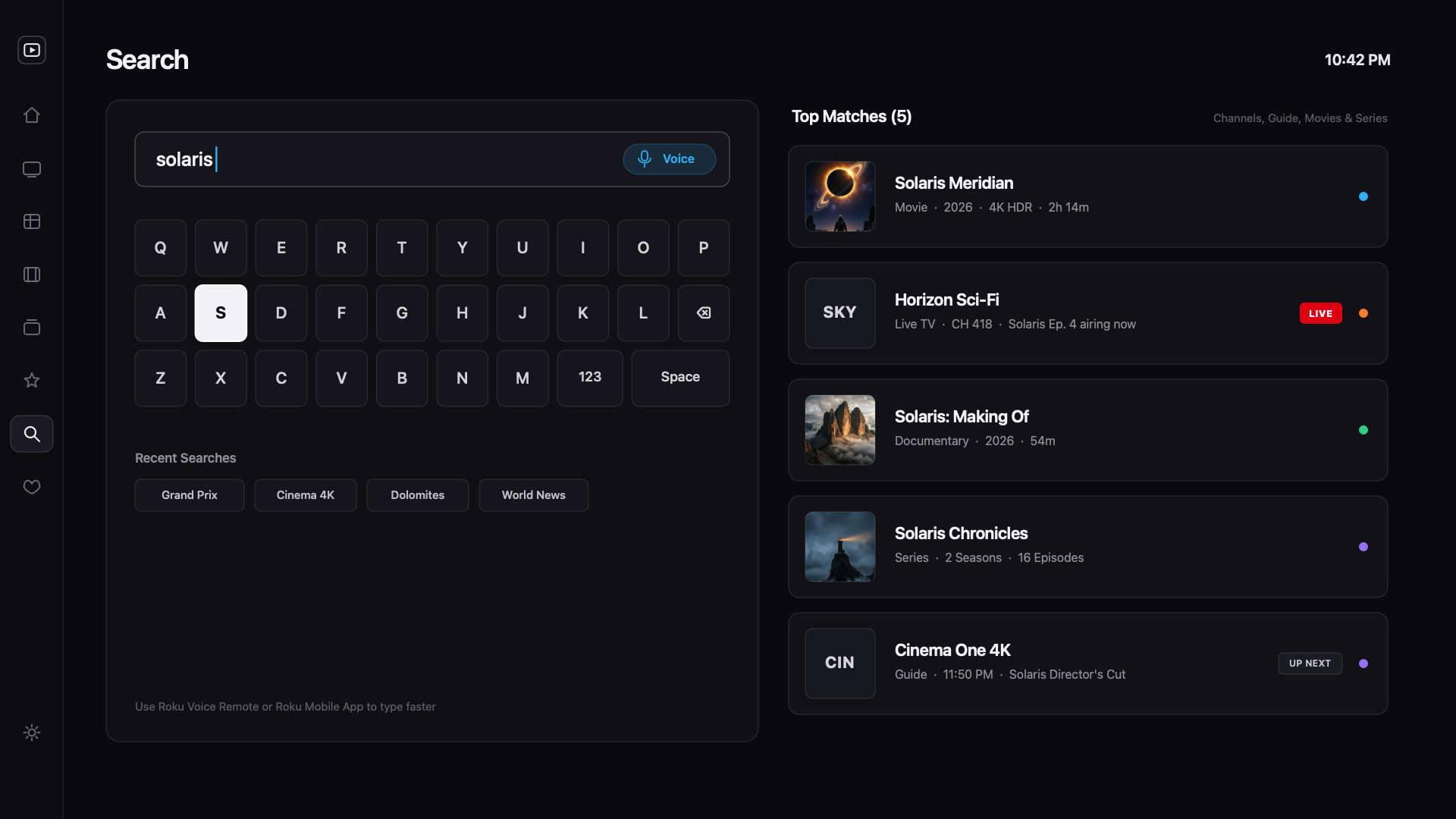
Global Search indexes your local channels, upcoming EPG guide programs, movies, and series simultaneously—showing colored source dots and live status badges right alongside Top Matches.
No. Neon is strictly a neutral media player software application. It contains zero pre-loaded channels, playlists, VOD libraries, or subscriptions. You add your own legally authorized M3U8 playlists, Xtream Codes credentials, or Plex/Jellyfin/Emby/Stremio sources.
Exclusively on your Roku device inside Roku’s private, sandboxed storage. Genlock does not require a user account and never uploads, inspects, indexes, or sells your playlists, Xtream logins, or watch history. See our Privacy Policy for full details.
All Neon+ purchases are billed by Roku, Inc. via Roku Pay. To manage or cancel an auto-renewing Yearly plan, visit my.roku.com or highlight Neon on your Roku Home Screen, press Star (*), and choose Manage subscription. Uninstalling Neon does not automatically cancel a Roku Pay subscription.
No. Roku Pay does not automatically cancel an existing recurring Yearly subscription when you purchase Lifetime. Please cancel your Yearly renewal at my.roku.com so you are not billed again at the next renewal date.
Before any crash or voluntary feedback report leaves your Roku device, Neon runs a strict on-device sanitizer that strips playlist URLs, query parameters, Xtream usernames/passwords, Parental PINs, channel titles, and IP addresses. Our diagnostics database does not record IP addresses.
Because Roku, Inc. is the merchant of record for all Roku Pay transactions, billing inquiries and refund requests are handled directly by Roku Support. For app questions, privacy requests, or legal notices, email privacy@genlock.io or legal@genlock.io.